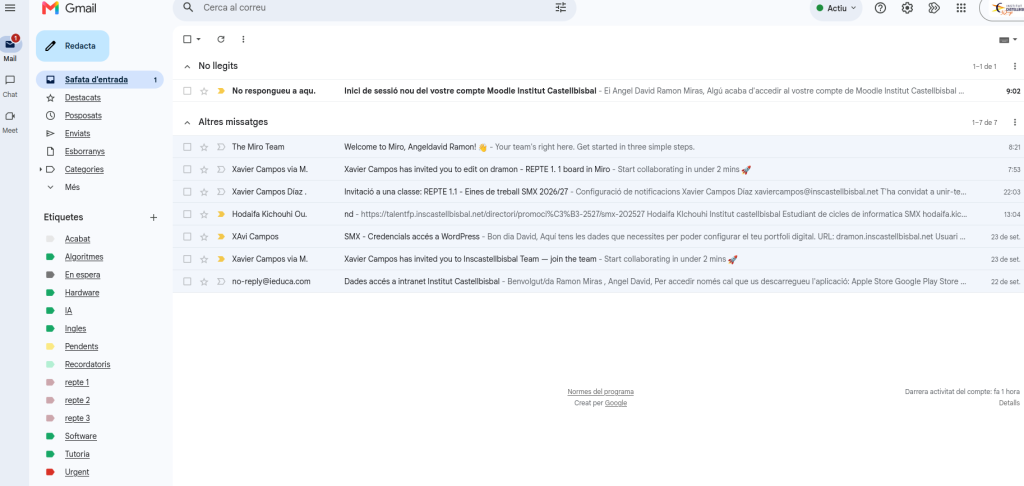
To create labels for organizing your incoming emails so you don’t lose your mind searching for them, first open Gmail and click the plus sign next to ‘Labels’ on the left side.
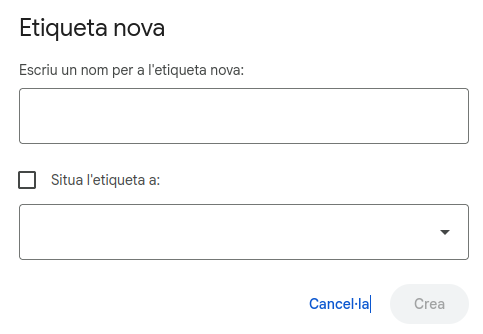
Then a screen will pop up where we have to enter the name of the label we want, and we can also choose if this label belongs to another label.
And that’s it, you have your label; now you can also assign it different colors to distinguish them more easily by clicking on the three dots.
My labels are designed to distinguish between levels of importance, such as “urgent” or “in progress”; by subjects, such as “AI” or “hardware”; and by challenges, like “challenge 1” or “challenge 2.” There are also extra categories like “completed”—for emails related to tasks or items that are already finished or no longer relevant—and “reminders,” for emails that store information like passwords, usernames, or links.
This is how my inbox turned out:
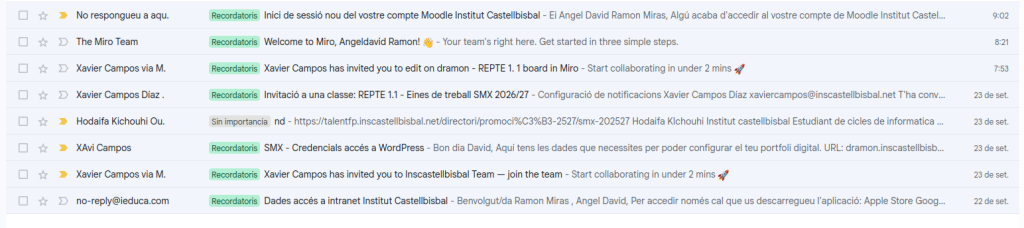
As you can see, since the school year has just started, practically all the emails are reminders because they contain information to access different websites and log in. But over time, there will be emails with different labels.
